Learning to generate HTML code from text descriptions has become one of the most accessible entry points into web development. Whether you're a student, a hobbyist, or someone switching careers, free HTML generator tools can dramatically shorten your learning curve. These tools translate your ideas, sometimes typed as plain text, into functional web pages without requiring you to memorize every tag and attribute.
A quality HTML code editor or web page builder gives beginners the confidence to experiment, break things, and rebuild. In 2026, the landscape of text-to-HTML converters has matured considerably. The best options now offer real-time previews, syntax highlighting, and even AI-powered code suggestions.
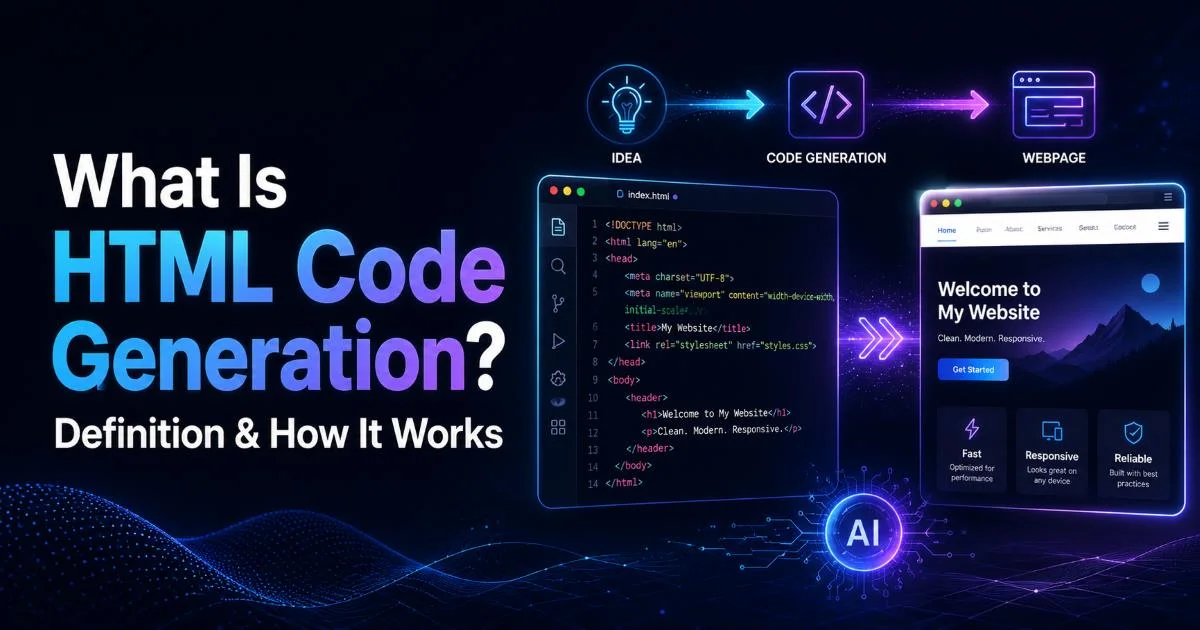
This guide walks you through the top free tools available right now, comparing their features so you can pick the right one for your projects. If you want to understand the fundamentals behind how these tools work, our deep dive into HTML code generation and how it works covers the underlying mechanics in detail.
Key Takeaways
- Free HTML generator tools in 2026 range from simple editors to AI-powered code builders.
- Visual web page builders work best for beginners who haven't learned syntax yet.
- Text to HTML converters save significant time when formatting content for websites.
- Always check generated code for accessibility and semantic correctness before publishing.
- Combining a code editor with a visual builder accelerates learning more than either alone.
Step 1: Understand the Types of HTML Generators Available
Before you download anything or create an account, you need to understand that "HTML generator" is an umbrella term covering several distinct categories of tools. Some generate HTML code from text you type in plain English. Others provide drag-and-drop interfaces where you visually arrange elements. A third category consists of traditional code editors enhanced with autocompletion and snippet libraries. Each category serves different skill levels and different purposes, so picking the wrong type can leave you frustrated rather than productive.
Text to HTML Converters
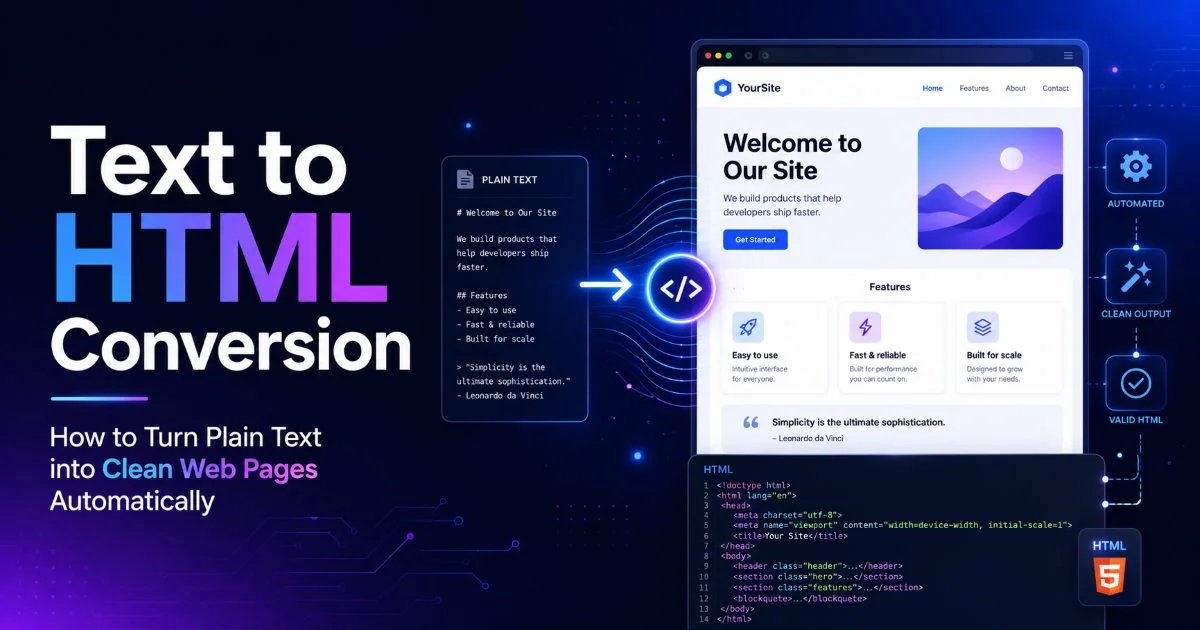
Text to HTML converters take plain or formatted text and wrap it in proper HTML tags automatically. Tools like Quill, TinyMCE, and CKEditor fall into this camp; they function as rich text editors that output clean markup behind the scenes. These are ideal when you have content ready and just need it formatted for the web. Bloggers and content managers use them daily. For beginners, they're a great way to see how paragraphs, headings, and lists translate into code.
Paste your plain text into a text-to-HTML converter, then inspect the output code to learn which tags correspond to which formatting.
Visual Web Page Builders
Visual web page builders like Google Web Designer, Mobirise, and Nicepage let you construct pages by dragging components onto a canvas. You don't write a single line of code; the tool generates it for you. The advantage is speed and instant gratification: you see your page take shape in real time.
The downside is that the generated HTML can be bloated or non-semantic. Still, for absolute beginners, these tools provide a mental model of how web pages are structured before you start writing code manually. Traditional HTML code editors like VS Code, Brackets, and Atom occupy the other end of the spectrum.
Read also How to Make Your Website AI Agent Friendly
They won't generate code for you, but they offer syntax highlighting, Emmet abbreviations, and extensions that autocomplete tags as you type. Think of these as training wheels that still require you to pedal. Many experienced developers started here, and the muscle memory you build transfers directly to professional work. The sweet spot for most beginners is using a visual builder alongside a code editor.
Step 2: Compare the Top Free Tools Side by Side
With so many options available, a structured comparison helps cut through the noise. I've evaluated six popular free tools across criteria that matter most to beginners: ease of use, output code quality, real-time preview, and whether they support responsive design out of the box. Each tool was tested by building a simple portfolio page with a heading, navigation, image section, and contact form. The results were revealing; not all free tools are created equal.
Feature Comparison Table
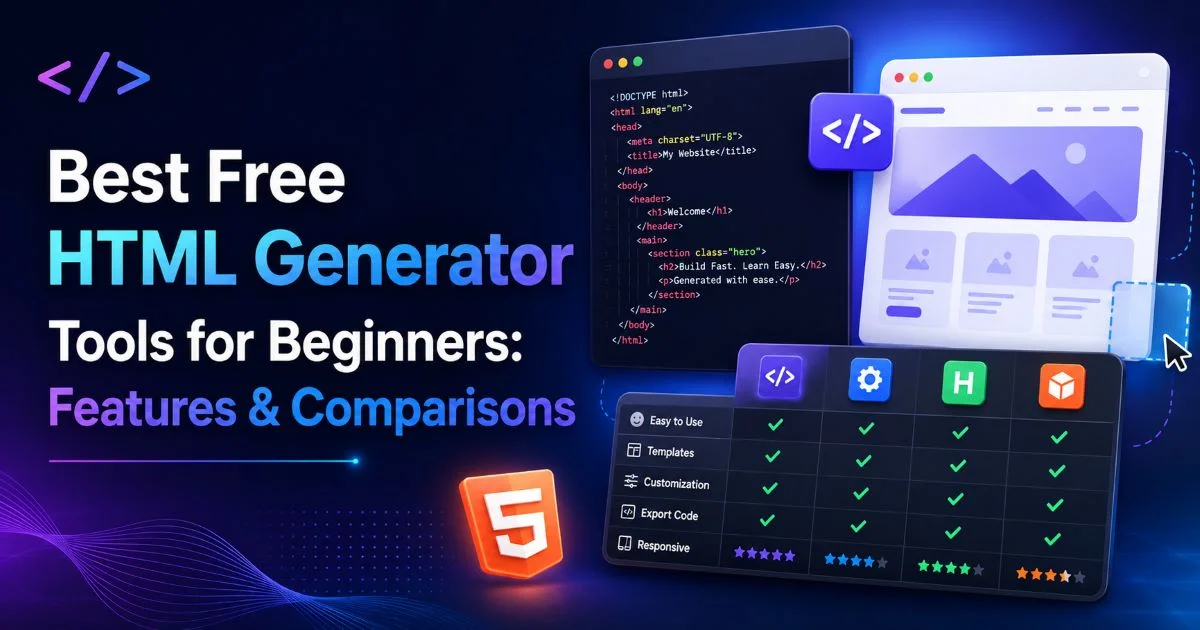
| Tool | Type | Real-Time Preview | Code Quality | Responsive Support | Learning Curve |
|---|---|---|---|---|---|
| VS Code + Live Server | Code Editor | Yes (via extension) | Excellent | Manual | Moderate |
| CodePen | Online Editor | Yes | Good | Manual | Low |
| Mobirise | Visual Builder | Yes | Fair | Automatic | Very Low |
| Nicepage | Visual Builder | Yes | Fair | Automatic | Very Low |
| TinyMCE | Text to HTML | Yes | Good | N/A | Very Low |
| HTML-Cleaner.com | Text to HTML | Yes | Good | N/A | Very Low |
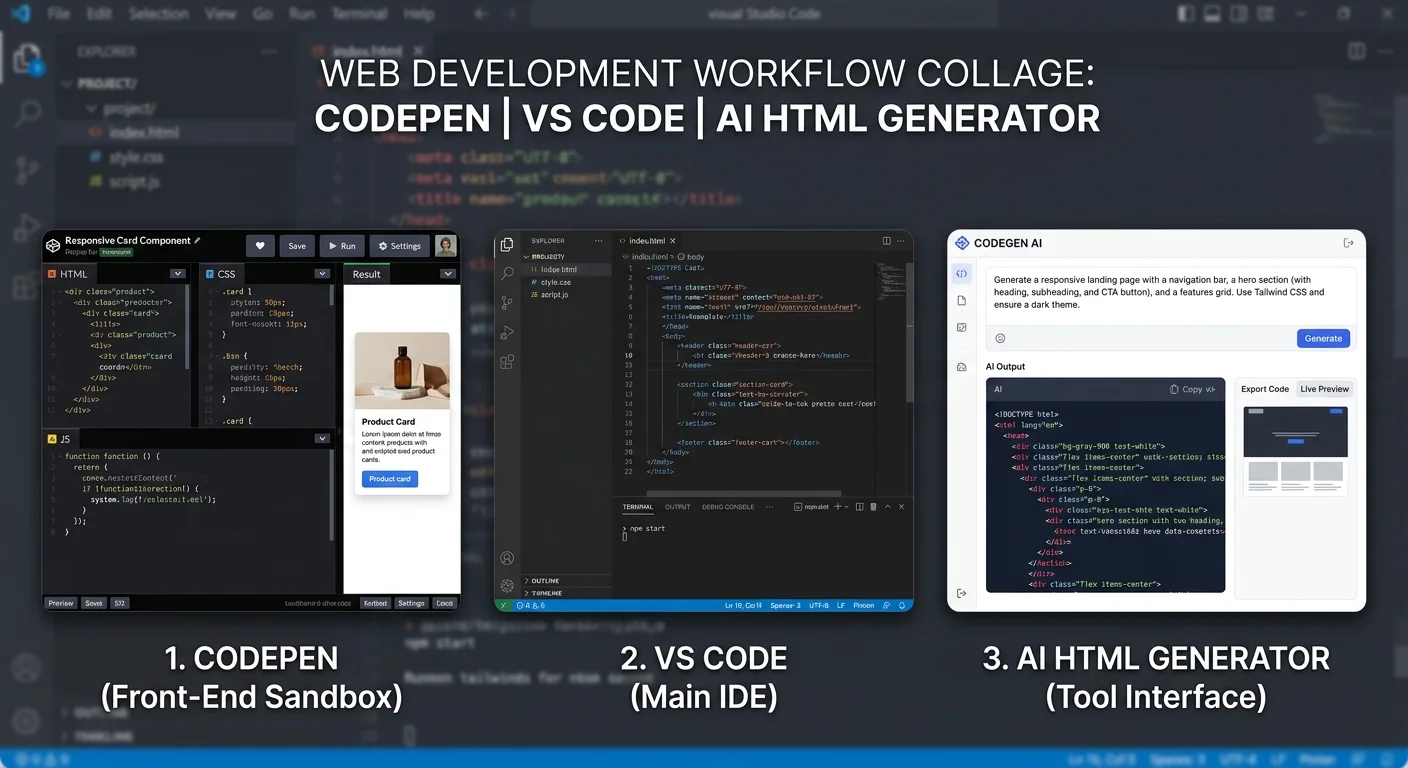
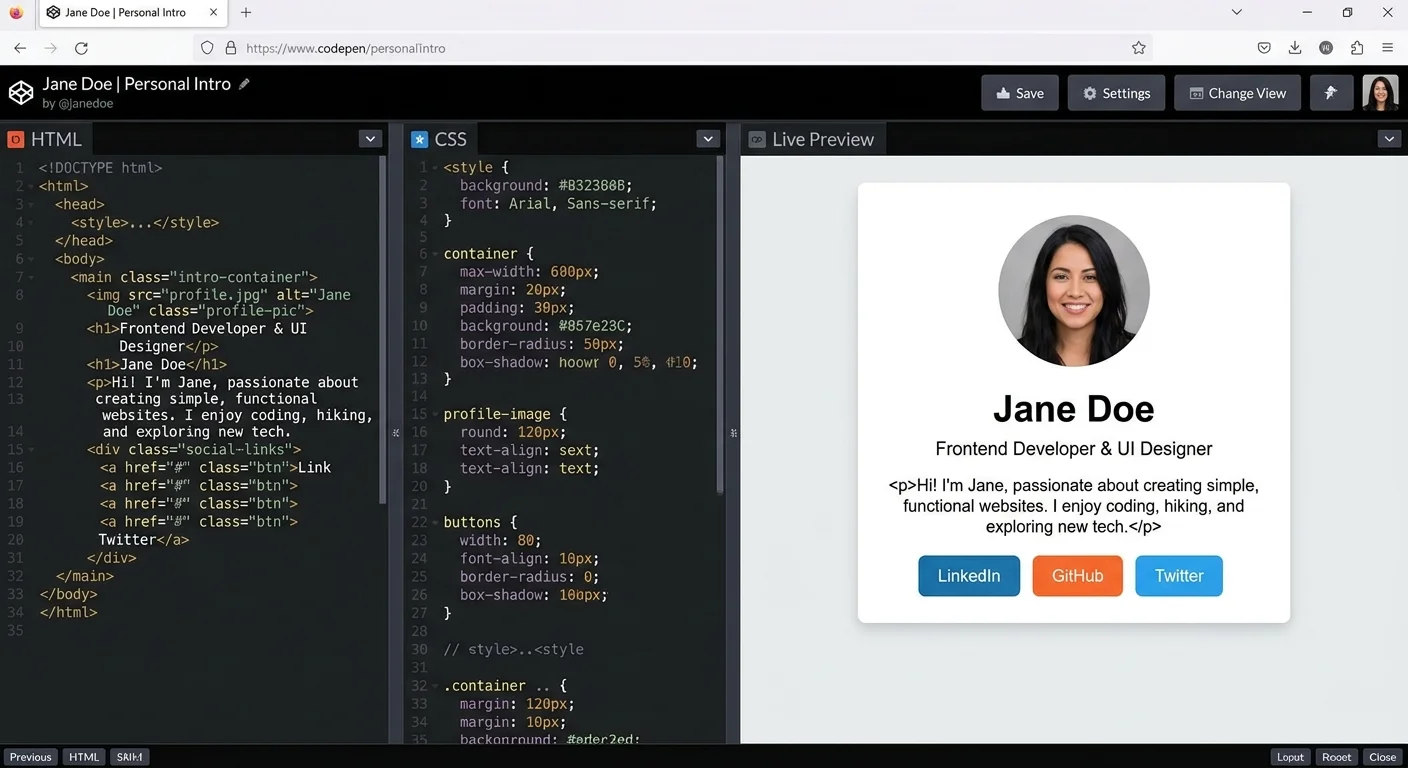
CodePen stands out as the best starting point for most beginners. It runs entirely in the browser, requires no installation, and splits the screen between your HTML, CSS, and JavaScript panels with an instant preview below. The community aspect is a bonus, you can fork other people's pens and learn by modifying their code. For someone who wants to generate HTML and see results within 30 seconds of opening a browser tab, nothing beats it.
Mobirise and Nicepage both produce responsive pages automatically, which is a huge advantage if you want a presentable result fast. However, their generated HTML tends to include excessive div nesting and proprietary class names. This makes the code harder to read and learn from. If your goal is understanding HTML structure, these tools can actually slow your progress. Use them for quick prototypes, but don't rely on them as your primary learning tool.
Visual builders often inject inline styles and framework-specific classes. Always review the exported code before using it in production projects.
Step 3: Evaluate the Features That Actually Matter for Beginners
Real-Time Preview and Error Feedback
The single most valuable feature for any beginner is real-time preview. When you type a tag and immediately see the result, your brain forms connections between code and visual output far faster than reading documentation alone. CodePen, JSFiddle, and VS Code with Live Server all offer this. The feedback loop should be near-instant; anything longer than a second breaks your flow. If the tool you're evaluating doesn't show changes live, move on to one that does.
Error feedback is the second pillar. VS Code's built-in HTML validation highlights unclosed tags, mismatched attributes, and deprecated elements with red or yellow underlines. CodePen is more forgiving it won't flag errors explicitly, which can let bad habits develop. A tool like the W3C Markup Validation Service complements any editor by checking your output against official standards. Beginners should validate their code weekly until writing clean markup becomes automatic.
"The best HTML generator for a beginner is whichever one keeps you building pages instead of fighting configuration."
Code Export and Portability
Your generated HTML needs to go somewhere eventually a GitHub repository, a hosting provider, or a local folder. Not all tools make exporting straightforward. CodePen lets you export pens as zip files containing separate HTML, CSS, and JS files. Mobirise exports full site folders ready for upload. TinyMCE outputs raw HTML that you can paste anywhere. When building HTML tables, dedicated utilities like the best HTML table generator tools can save you from the tedium of manually coding rows and columns, then you simply paste the output into your main file.
Portability also means your skills transfer. Tools that teach you standard HTML and CSS syntax rather than proprietary abstractions give you knowledge you can use in any environment. That's why I recommend spending at least some time in a proper HTML code editor like VS Code, even if you start with a visual builder. The syntax you learn there works everywhere: WordPress themes, React components, email templates, and static sites alike.
Export your code weekly and try opening it in a different tool or browser to catch environment-specific issues early.
Step 4: Pick Your Tool and Start Building Your First Page
A Practical First Project
Theory without practice is useless. Here's a concrete first project: build a personal introduction page with your name as an h1, a short bio paragraph, an unordered list of three skills, and a link to your email. Open CodePen, type the HTML in the left panel, and watch the preview update on the right. This takes about ten minutes and teaches you five fundamental tags: h1, p, ul, li, and a. Once it works, try adding an image tag and a horizontal rule to push yourself further.
After completing that page in CodePen, recreate it in VS Code. Create an index.html file, type the same markup from memory, and open it with Live Server. You'll notice that VS Code requires you to write the DOCTYPE declaration, HTML, head, and body tags that CodePen handles invisibly. This is the full picture of an HTML document, and understanding it separates someone who can use a web page builder from someone who can actually build web pages independently.
Once you're comfortable with basic tags, challenge yourself to build a two-column layout using CSS flexbox alongside your HTML. Most HTML generator tools won't teach you layout; that's where manual coding in an editor pays off. Set a goal of building one small page per week for a month. By the end, you'll have a portfolio of four pages and a working understanding of how HTML structures content. Speed and polish come later; right now, consistency matters most.
Don't jump between five different tools simultaneously. Pick one primary tool for building and one for learning, then stick with them for at least a month.
Document your progress as you go. Save each project in a folder on your computer, and consider creating a free GitHub account to store your work online. Version control might seem advanced, but GitHub's web interface lets you upload files without using the command line. Having your code accessible from any device keeps you building during spare moments, and a public repository doubles as proof of your growing skills when you're ready to apply for jobs or freelance gigs.
Frequently Asked Questions
?How do I learn HTML by using a text to HTML converter?
?Should beginners use a visual page builder or a code editor first?
?Are free HTML generator tools enough for real projects?
?What's the biggest mistake beginners make with generated HTML code?
Final Thoughts
The best free HTML generator tools give beginners a real shortcut into web development without sacrificing understanding. CodePen is my top recommendation for its zero-friction setup and instant feedback loop. Pair it with VS Code for deeper learning, and use text to HTML converters when you need quick content formatting.
Don't overthink the choice. Pick a tool today, build a page tonight, and iterate from there. The gap between "I want to learn HTML" and "I just built my first web page" is smaller than you think.
Disclaimer: Portions of this content may have been generated using AI tools to enhance clarity and brevity. While reviewed by a human, independent verification is encouraged.