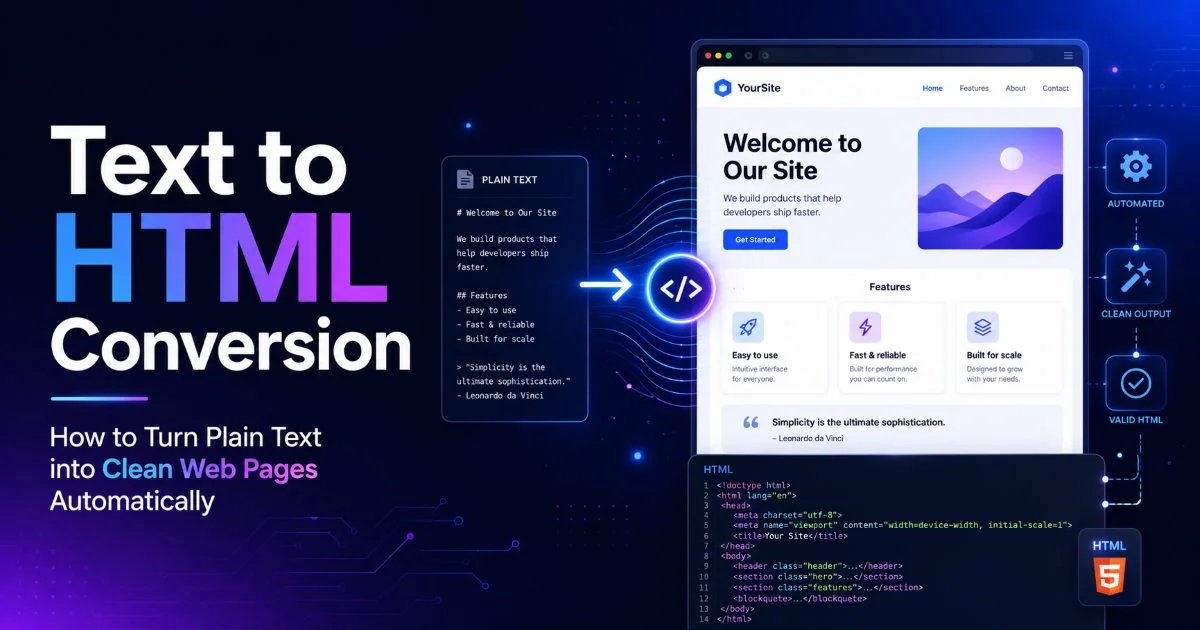
Converting plain text into structured HTML is one of the most common tasks beginner developers face, and learning to generate HTML code from text efficiently can save hours of manual work. Whether you're formatting a blog post, building a landing page, or preparing content for a client site, the process of turning raw text into clean markup doesn't have to be painful.
Modern tools from AI-powered platforms to dedicated HTML generators have made text-to-HTML conversion faster and more accessible than ever. Understanding how these tools work and when to use them gives you a real advantage. This guide walks you through the entire process step by step, with practical techniques you can apply right now. If you're new to web development and want to stop hand-coding every paragraph tag, you're in the right place.
Key Takeaways
- Plain text needs semantic HTML tags to display properly in any web browser.
- Markdown serves as an excellent intermediate step between raw text and HTML output.
- AI-powered HTML generators can produce full page structures from simple descriptions.
- Always validate and clean your converted HTML before publishing it live.
- Choosing the right conversion method depends on your project's complexity and scale.
Step 1: Understand Your Source Text and Choose a Conversion Method
Before you touch any tool, take a minute to look at what you're actually working with. Is your source material a Google Doc with headings and bullet points? A plain .txt file with no formatting at all? Or maybe it's content copied from an email. The structure (or lack thereof) in your source text directly determines which conversion approach will work best and produce the cleanest HTML output.
Types of Text Input You Might Have
Unformatted plain text, the kind you'd find in Notepad, requires the most work because it has zero semantic information. You'll need to identify headings, paragraphs, and lists manually or with an intelligent tool. Rich text from word processors carries some formatting hints, but often produces bloated HTML full of unnecessary <span> tags and inline styles when pasted directly into an editor.
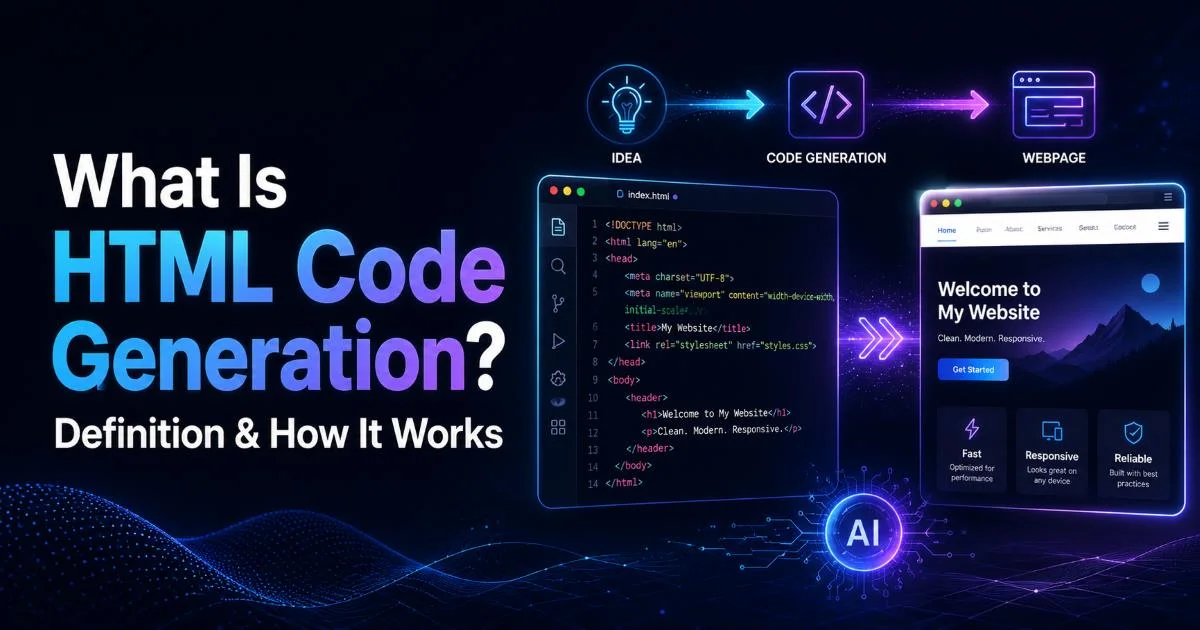
The method you pick matters. For simple content, a basic web page builder with paste-and-format features might suffice. For larger projects with multiple pages, you'll want something more systematic. Understanding what HTML code generation is and how it works gives you the conceptual foundation to pick the right tool. Small content pieces often don't justify complex setups, so match your method to the job size.
Paste rich text into a plain text editor first to strip hidden formatting before converting to HTML.
Step 2: Use Markdown as a Bridge Between Text and HTML
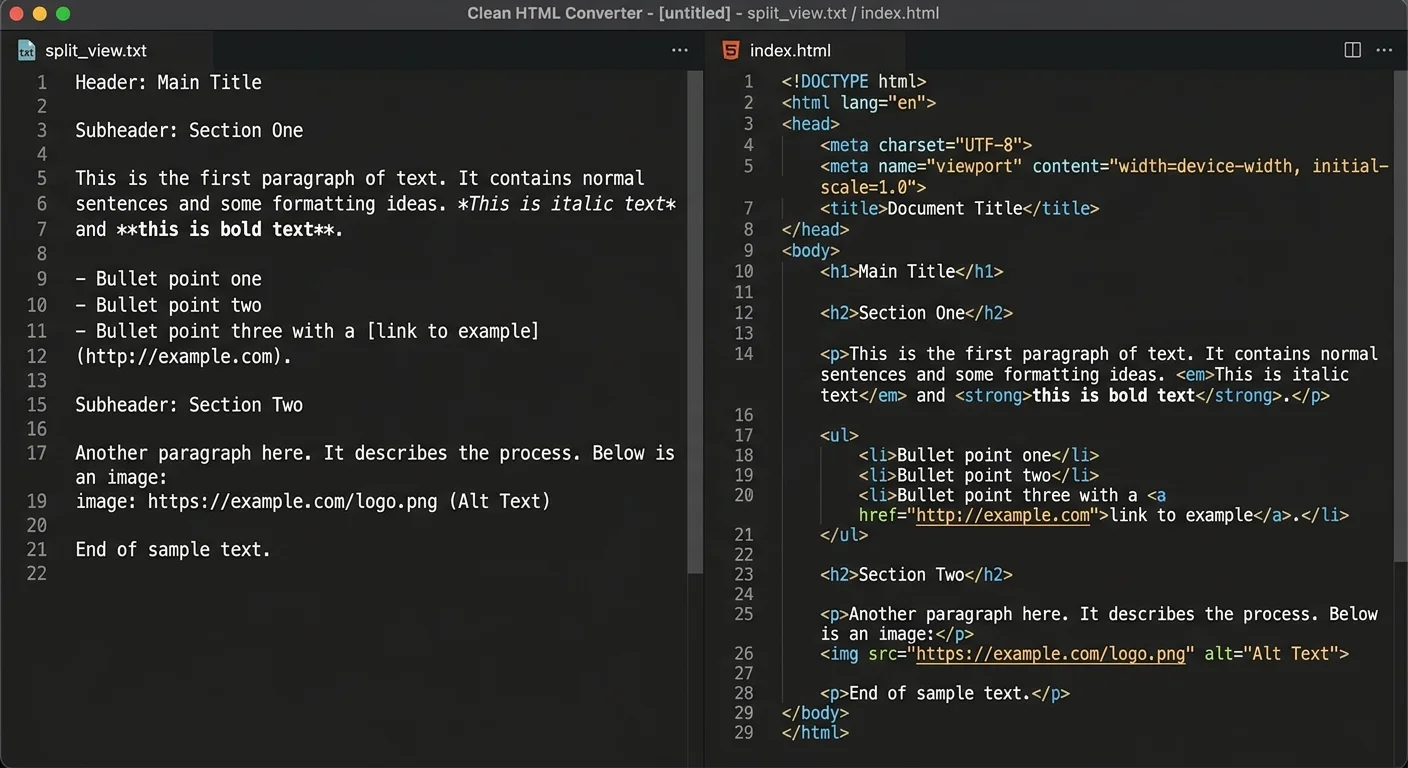
Markdown is the unsung hero of text-to-HTML conversion. It's a lightweight syntax that uses simple characters, asterisks for bold, hashes for headings, dashes for lists to represent structure. Writing in Markdown feels almost identical to writing plain text, but a converter can transform it into perfectly valid HTML in seconds. For beginners, this intermediate step often produces cleaner output than any direct conversion method.
Here's why this matters: when you write ## My Heading in Markdown, it converts to <h2>My Heading</h2>. When you write **bold text**, you get <strong>bold text</strong>. The mapping is predictable and semantic. You're not fighting with a WYSIWYG editor that wraps everything in <div> tags for no reason. Markdown respects the document's logical structure, and that translates directly into clean HTML.
Markdown-to-HTML Tools Worth Trying
| Tool | Type | Best For | Cost |
|---|---|---|---|
| Dillinger | Browser-based editor | Quick single-page conversions | Free |
| Pandoc | Command-line tool | Batch converting multiple files | Free |
| Typora | Desktop app | Writing and previewing in real time | $14.99 |
| Marked 2 | macOS preview app | Live HTML preview with custom CSS | $13.99 |
| VS Code + Extension | Code editor plugin | Developers already using VS Code | Free |
If you're deciding between a dedicated HTML code editor and a visual builder for your workflow, the choice often comes down to how much control you need. There's a detailed comparison of web page builders versus HTML code editors that breaks this down by project type. For Markdown-based workflows, a code editor with a preview pane typically gives you the best balance of speed and control over the final output.
Markdown doesn't support all HTML features natively. For complex layouts with tables or embedded media, you'll need to mix in raw HTML within your Markdown files.
Step 3: Generate HTML Code from Text Using AI-Powered Tools
AI tools have changed how beginners approach HTML creation. Instead of memorizing tag syntax or wrestling with Markdown, you can describe what you want in plain English and receive structured HTML back. Tools built specifically for this purpose, like the ones covered in this step-by-step guide to generating HTML code from text using AI, accept natural language prompts and output complete page sections or full layouts.
The practical workflow looks like this: you type something like "Create a pricing table with three columns for Basic, Pro, and Enterprise plans," and the AI produces a semantic HTML table with appropriate headings, rows, and structure. The better tools also add ARIA attributes for accessibility and use semantic elements like <section> and <article> rather than generic <div> soup. This is where the text to HTML conversion process has genuinely improved over the past two years.
Read also How Software License Checkers Detect Hidden Risks
What AI Tools Actually Produce
Not all AI-generated HTML is equal. Some tools output minimal markup that needs CSS to look presentable. Others produce complete pages with inline styles or linked stylesheets. For beginners exploring their options, there's a useful roundup of free HTML generator tools with feature comparisons that can help narrow your choices. The key is finding a tool whose output matches the skill level you want to be able to read and modify what it produces.
One thing to watch: AI tools sometimes produce HTML that looks correct but contains subtle issues. Unclosed tags, incorrect nesting of block and inline elements, or deprecated attributes can slip through. You should also test the generated code in an HTML compiler to verify it renders correctly across browsers. Never publish AI-generated markup without reviewing it first treat the output as a strong first draft, not a finished product.
AI-generated HTML may include deprecated tags or incorrect ARIA roles. Always run output through the W3C validator before deploying.
"Treat AI-generated HTML as a strong first draft, not a finished product review it, validate it, then ship it."
Step 4: Validate, Refine, and Publish Your HTML Output
You've got your HTML. Maybe Markdown produced it, maybe an AI HTML generator did the heavy lifting, or maybe you used a combination. Either way, this step is where beginners most often cut corners and where problems hide. Validation means running your code through the W3C Markup Validation Service to catch errors like missing closing tags, improperly nested elements, or invalid attributes that browsers might interpret unpredictably.
Beyond validation, refinement means making your HTML semantic and accessible. Replace generic <div> containers with meaningful tags like <nav>, <main>, <header>, and <footer>. Add alt attributes to every image. Check that your heading hierarchy flows logically from <h1> through <h2> and <h3> without skipping levels. These adjustments take minutes but dramatically improve both search engine visibility and screen reader compatibility.
Common Cleanup Tasks After Conversion
Converted HTML frequently contains empty paragraphs, redundant <br> tags, or <span> elements that serve no purpose. Strip these out. If your source was a Word document, look for Microsoft-specific markup like <o:p> tags. These are invalid HTML and will cause rendering issues. A good HTML code editor with a "tidy" or "format" function can automate most of this cleanup work for you.
Use the "Prettify" or "Format Document" shortcut in VS Code (Shift+Alt+F) to auto-indent your HTML and spot nesting errors visually.
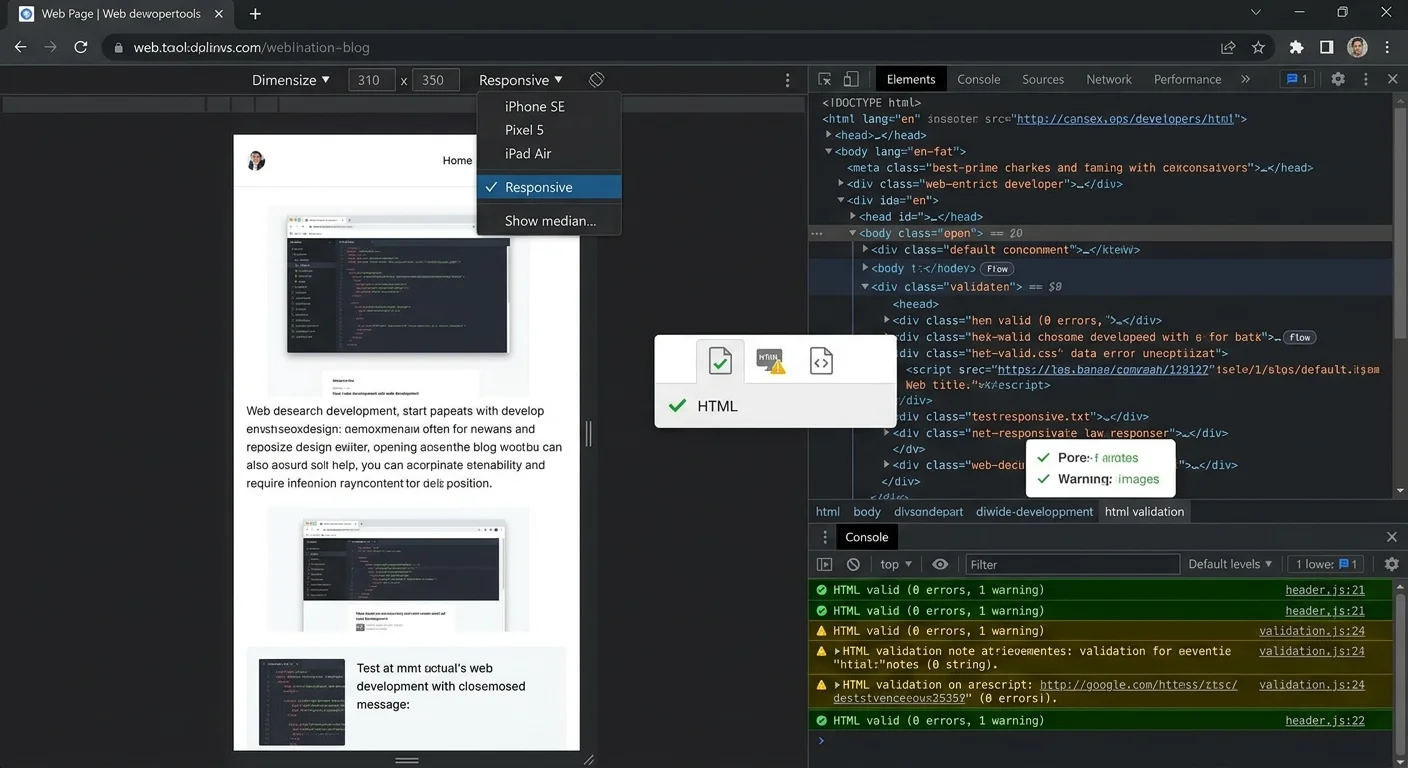
Finally, test your page in at least two browsers and on a mobile device before publishing. Chrome's DevTools and Firefox's Inspector both offer responsive design modes that simulate different screen sizes. If you've used a web page builder to generate HTML code from text, the output may include responsive breakpoints already, but verify rather than assume. Open the file locally, resize the viewport, and check that text reflows, images scale, and navigation remains usable at every width.
Frequently Asked Questions
?How do I strip hidden formatting before converting rich text to HTML?
?Is Markdown-to-HTML better than using an AI HTML generator?
?How long does it actually take to convert a full page of plain text to clean HTML?
?Will pasting text directly into an HTML code editor produce usable markup?
Final Thoughts
Turning plain text into clean HTML doesn't require years of experience or expensive software. Start by understanding your source material, use Markdown as an efficient middle layer, and let AI tools handle the repetitive structural work. The most important habit to build is validation. Always check your output before it goes live. As you grow more comfortable with these workflows, you'll find that converting text to polished web pages becomes second nature, freeing you to focus on design, content, and the parts of web development that actually matter.
Disclaimer: Portions of this content may have been generated using AI tools to enhance clarity and brevity. While reviewed by a human, independent verification is encouraged.